
How to make cursor arrows bigger in Windows 7?
From: http://www.askdavetaylor.com/
Is there a way to make the cursor bigger in Windows 7 system? Of course there's a solution. Microsoft's got your back, nothing to worry about.
Right-click on the Desktop. Anywhere'll do. You'll see a menu like this:
 Click on "Personalize", the last choice of the set shown. Now you'll go to a big window with many different options, one well worth exploring:
 Look on the top left of the window. You'll see these options:
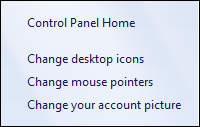 Click on "Change mouse pointers" and you'll move to a rather more complicated and information-dense window:

Click on "Personalize", the last choice of the set shown. Now you'll go to a big window with many different options, one well worth exploring:
Look on the top left of the window. You'll see these options:
Click on "Change mouse pointers" and you'll move to a rather more complicated and information-dense window:


 ..
..
